|
|


HMI Panels |

|

|

|

|

|
||
HMI Panels |
|
|
|

|

|

|
|
|
HMI Panels |
|
|
|
|
|
||
HMI Panels |
|
|
|
|
|
|
|
|
||
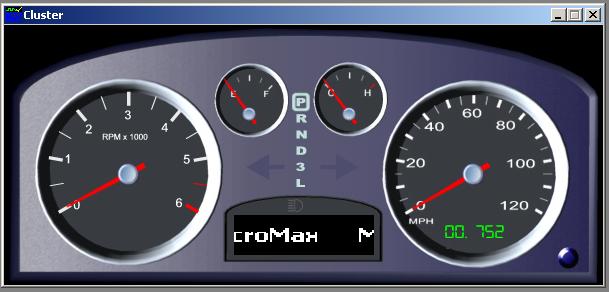
HMI panels enable you to create a computer-based user interface that looks like the actual Human-Machine Interface of the final control system.
 |
| Click to expand. |
The Mx‑VDev HMI panel offers a simple approach to creating a PC-based animation of the graphic interface to your controller (such as an instrument cluster, center-stack display, or navigation system). Input can be accepted by clicking active components on the panel and outputs such as gauges and tell-tales are displayed and changed as tests are run. The HMI Panel active components can be linked to any stimulus or response Signals that are available in the Signal Dictionary.
To get started, you need digital images of your display (such as bmp or png files) in its different operational states. Create a library of images of the active and background components of your display. There are many sources for the display images. They include: a digital camera, sample images, design tools like GLStudio and Altia, and graphic editors such as Photoshop.
The following types of controls are supported:
| • | Tell-tale such as a warning light or turn indicator |
| • | Numeric display such as an odometer |
You can see an example of an Mx-HMI panel in the Door Turn Scenario.
| 1. | Open the DoorTurnSample Project. See Sample Projects Overview. |
| 2. | Open the Scenario named: TestScenarioRPM_HMI.mxs |
| 3. | Open the HMI panel named Cluster.mxhmi (in the HMI folder). |
| 4. | Click the  button on the Simulation toolbar to switch to RT Clock. button on the Simulation toolbar to switch to RT Clock. |
| 5. | On the Simulation toolbar click the Run button. |
Briefly, this is how it works:
Start with the digital artwork of the HMI.
Create the mxhmi file with a tool such as Notepad or Visual Studio. The mxhmi file is an XML file. Use the sample file as a template.
You should see the HMI Panel animate as the test case executes.
Use the Background tag to specify the HMI artwork file. For all controls (widgets), the SigName tag specifies the Signal that operates the control.
|

